Showing posts with label facebook. Show all posts
Showing posts with label facebook. Show all posts
Saturday, November 17, 2012
How to avoid missing Facebook Page posts [thanks to Always Upward !]
I think you want to see the images, so click here. Rest is just for my quick reference:
http://alwaysupward.com/facebook_helpers/Get_Your_FB_Page_Posts_Back.pdf
How to avoid missing Facebook Page posts
Hey...who hid the Page posts?
When you first "like" a Facebook page, posts from that page appear in your newsfeed. With
time, however, they became less frequent, eventually disappearing entirely.
Crazy thing? The page has nothing to do with that disappearing act. It's due to EdgeRank, a
less-than-warm-n-fuzzy algorithm program Facebook uses to determine what you get to
see...and what you don't.
(Translated: Unless you frequently visit "liked" pages, as well as click on, share, or "like" their
posts, EdgeRank stops including them in your newsfeed. Well written posts that don't require a
click-through end up penalizing the page. And the fan.)
The following steps help reclaim those missing page posts, putting you squarely back in the
driver's seat.
1. Click the MORE link (bottom, left side menu on your Home
screen)
2. In the INTERESTS section that appears, click "Add Interests"
3. Click "Create List"
How to avoid missing Facebook Page posts by AlwaysUpward.com/blog Page 2
4. Click the items you want to add to your new List
You'll see all Pages you've "liked" in the past.
Clicking on their profile pic adds a little blue checkmark, which then adds them to your new
List.
5. When finished, click the Next button (lower right)
6. Name your new List and set visibility
P.S. If you set the List to "Public," more folks get to share the love.
Ta-da! Your new List automatically appears, complete with ALL
posts from Pages.
From now on, your List will appear on your Home screen (left
menu, bottom)
Sometimes, it will be hidden under the MORE link. Just click MORE to see your INTERESTS
section again.
Are you a Page admin?
There are a few things you can do to increase the odds of posts appearing in newsfeeds:
http://www.alwaysupward.com/facebook_helpers/Improve_FB_Post_VIsibility.pdf
'via Blog this'

Click this link, see all FB Page posts [thanks to The Always Upward Blog]
Click this link, see all FB Page posts
 I type this with high hopes and a bit of astonishment. Apparently, Facebook has been listening to the armies of Page admins and fans frustrated(that’s the nice word) by the use Edge Rank to impose a “big brother approach” when determining what someone sees in their newsfeed.
The result? Beta testing of a new option: a Pages Feed, tucked into the Pages section on the left hand side of the newsfeed screen.
It hasn’t rolled out for everyone yet—just a few lucky folks in the test group. Want to see what the results would look like on YOUR newsfeed? Log into your FB account, then click this link. Voila! There are all. Those. Missing. Pages. Again.
Yes, this makes me happy, although history has taught us that Facebook’s actions are almost always followed by a financial “Yes, but….” surprise (first, we see reach numbers for each post, then sudden horrific drops in reach, immediately followed by an “invitation” to increase your visibility by paying to “promote” posts?).
Fingers are crossed. Sure would love to welcome our long-missed fans back to the fold.
My Wish List:
The Pages Feed included in the newsfeed drop down menu someday…seehere.
The Pages Feed included in the newsfeed drop down menu someday…seehere.
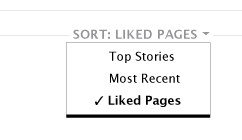
Click here to tell me what you think....
... More at link below
Click this link, see all FB Page posts | The Always Upward Blog
'via Blog this'
Sunday, July 1, 2012
Deliver Your Content to LinkedIn with dlvr.it (and also to twitter and Facebook)
Perhaps you have heard that LinkedIn can no longer show your Twitter status updates due to Twitter cracking down on the usage of their API. Happily I already use the free dlvr.it service to distribute my blog, so I just enabled an additional route directly to LinkedIn. No muss, no fuss. I used to use another service for distribution, but I found them less reliable. If you see this post, then I managed to set it up right. :-)
Deliver Your Content to LinkedIn with dlvr.it:
Read More: http://mayura4ever.blogspot.com/2011/11/deliver-your-blogger-content-to.html#ixzz1zPtbrlgj
'via Blog this'
Deliver Your Content to LinkedIn with dlvr.it:
Deliver Your Content to LinkedIn with dlvr.it


LinkedIn is a popular social networking website. Actually it's a business related social networking site where professionals meet together to exchange information, ideas and opportunities. In addition to Facebook, Twitter and Google+, you may have already engage in LinkedIn to meet professionals and friends. So you may finding a way to share your content on LinkedIn too. However you can share each and every content you publish on your site manually by logging into your LinkedIn account. But would you like to post your content to LinkedIn without killing your valuable time?
If you can recall, we have gone through the advantages of dlvr.it once before. As it helps you to syndicate your content to reach more social audience, it aids you to share your content on LinkedIn network while associating with many other services such as integrating Feedburner service, URL shortners and Statistics. With dlvr.it you can take control of posts you wanna publish to LinkedIn. Let's find out how to automate sharing of your content over to LinkedIn.
Before You Go:
You need to sign up for a new account if you have no dlvr.it account yet. Else you can sign in using your OpenID.
Before You Go:
You need to sign up for a new account if you have no dlvr.it account yet. Else you can sign in using your OpenID.
Steps:
1. Sign in to your dlvr.it account.
2. Find and click on + Add Route button to set up a new route.
3. Click + add button on the Sources box at left.
4. Select New option on the Source Editor pop up.
5. Provide your site feed address in Feed URL text box under Feed Details tab.
Note: If you are a Blogger user and don't know your feed address, then find your Blogger feed address.
Note: If you are a Blogger user and don't know your feed address, then find your Blogger feed address.
6. Further you can check out more preferences for your feed in the Source Editor pop up box such as filtering your content, setting update period, republishing posts you edit and update, integrating Feedburner URL instead of original and more. Change those settings as you prefer.
Note: Make sure to enable Do not sort feed by item timestamps option under Advanced tab to publish your posts in the order as you seen on your blog or website. Else it will publish your recently edited or updated posts at last.
7. Now click on save source button.
8. Now click + add button on Destinations box.
9. Select New option corresponding to LinkedIn logo on imminent pop up box.
10. Now you need to authorize your LinkedIn account to post content on LinkedIn. Click Start Authorization button and allow permissions.
11. You can format the content to be published on LinkedIn on Post Content tab.
Note: Due to limitation imposed by LinkedIn, dlvr.it will post your content as status updates and no snippet will be shown eventhough you have selected Post the source body option.
11. You can format the content to be published on LinkedIn on Post Content tab.
Note: Due to limitation imposed by LinkedIn, dlvr.it will post your content as status updates and no snippet will be shown eventhough you have selected Post the source body option.
12. Now save your Destination settings.
More Information:
* You can use route settings button to access corresponding route settings and it enables you to set up custom tracking, filtering and URL shortner service.
* You can use route settings button to access corresponding route settings and it enables you to set up custom tracking, filtering and URL shortner service.
* You can find options to pause or delete your route, on the top right at corresponding route you have set up.
Enjoy :-)
Read More: http://mayura4ever.blogspot.com/2011/11/deliver-your-blogger-content-to.html#ixzz1zPtbrlgj
'via Blog this'
Subscribe to:
Posts (Atom)